 Click to enlarge
Open Settings
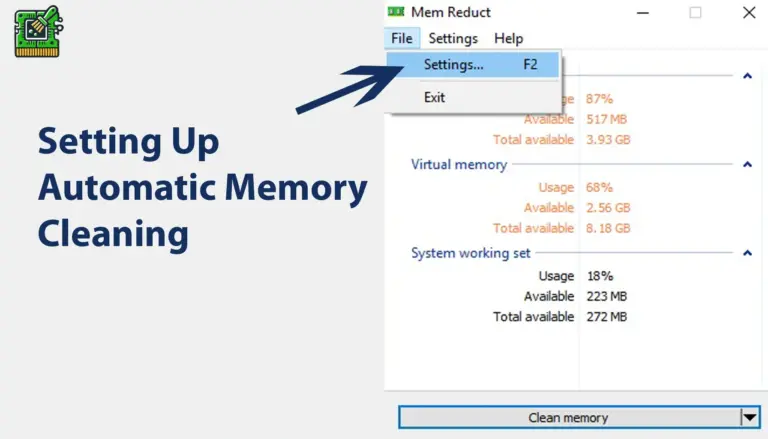
From the main Mem Reduct window, open the File menu and select Settings, or press F2 on your keyboard.
 MEM REDUCT
Installation, configuration, optimization, and troubleshooting help for Mem Reduct. Everything you need to get the most from your memory management tool.
Download memreduct-3.5.2-setup.exe from our download page, verify the SHA256 checksum, run the installer, and approve the UAC prompt when Windows requests administrator rights.
Go to DownloadAfter installation, Mem Reduct appears in the system tray. The tray icon displays current memory usage percentage and changes color as usage increases.
Total RAM allocated to running processes and system operations.
RAM immediately available for new applications.
Temporary cached data that can be safely cleared.
Memory cached from closed applications, reclaimable on demand.
Click the tray icon or double-click to open the main window for detailed breakdowns. Use this as a lightweight system monitor alternative focused specifically on memory metrics.
When your system feels sluggish, perform a manual cleanup without closing applications or restarting.
Right-click the Mem Reduct tray icon or open the main window, then click Clean Memory or use your configured hotkey. Mem Reduct clears system cache, standby lists, and modified page lists while active applications keep running.
Automate memory optimization so your PC maintains peak performance without manual intervention. Use the Settings screens below to configure memory regions, usage thresholds, and scheduled cleaning.
Click to enlarge
From the main Mem Reduct window, open the File menu and select Settings, or press F2 on your keyboard.
 Click to enlarge
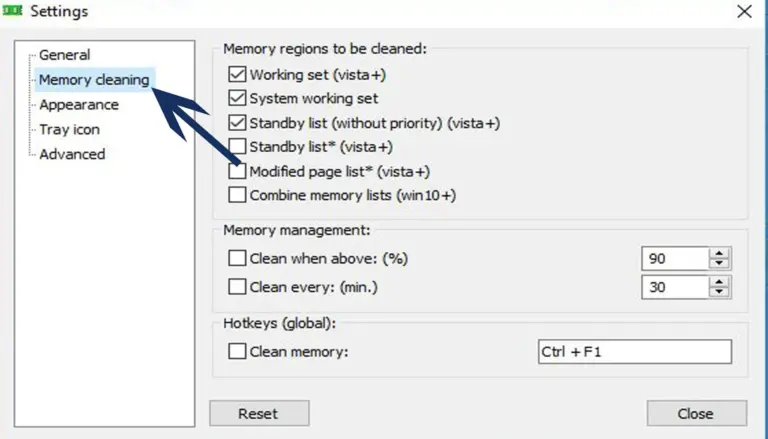
In Settings, open the Memory cleaning tab and select which memory regions Mem Reduct should clear during automatic cleanup.
 Click to enlarge
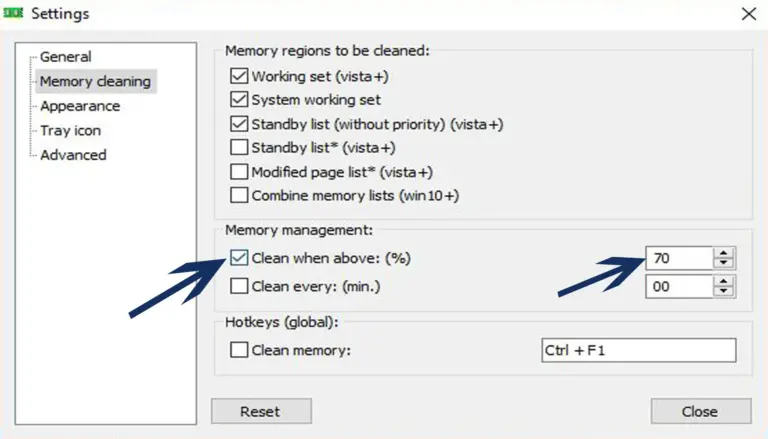
Enable Clean when above and choose a percentage such as 70%. Mem Reduct cleans automatically when RAM usage exceeds that level.
 Click to enlarge
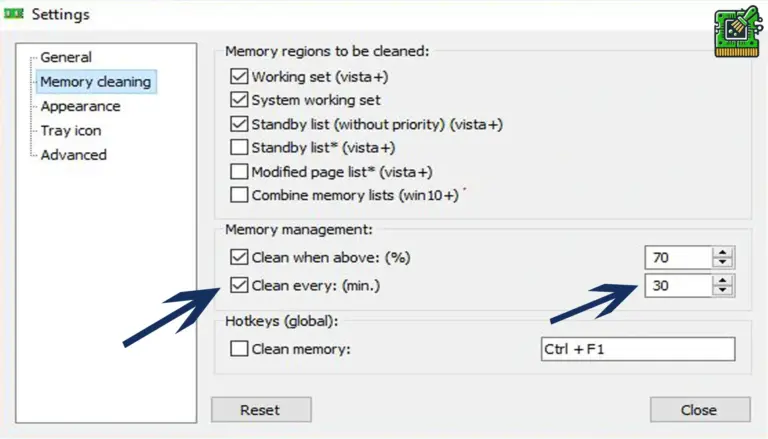
Enable Clean every and set an interval such as 30 minutes for regular background maintenance, even when usage stays below your threshold.
Customize which memory areas Mem Reduct targets during cleanup. Access these settings under Settings > Memory Cleaning.
Kernel and system driver memory. Clear with caution on servers; safe for desktop use.
Active process memory pages. Provides moderate recovery without affecting running apps significantly.
Cached memory from closed apps. Highest recovery potential; recommended to always enable.
Pages pending disk writes. Safe to clear; frees RAM held by pending I/O operations.
New in v3.5.2. Clears file system cache for additional memory recovery on busy systems.
Available on Windows 8.1 and newer. Clears registry cache for marginal additional recovery.
Assign global keyboard shortcuts for instant memory cleanup without navigating menus. Ideal for gamers and power users who need quick RAM recovery during intensive sessions.
Run Mem Reduct from a USB drive or network folder without installation.
Enable Mem Reduct to launch with Windows for continuous background monitoring.
Enable balloon tips when cleanup completes. Useful for verifying auto-clean is working.
Select interface language and enable dark theme (improved in v3.5.2).
Choose how memory usage is displayed in the system tray icon.
Prevent cleanup from affecting critical processes like antivirus software.
Antivirus software may flag Mem Reduct because it performs low-level memory operations using Windows Native API. This behavior pattern is shared by legitimate system utilities and malicious tools alike, causing heuristic scanners to generate false positives.
Solution: Run as administrator. Right-click memreduct.exe and select "Run as administrator." Enable "Run as administrator" in Settings > General for permanent elevation. Ensure your antivirus is not blocking the executable after verifying checksums.
Solution: Enable Standby Page List and Modified Page List in Settings > Memory Cleaning. If RAM is already low, there is less to reclaim. Run memory-intensive applications first, then clean. Results vary from 10% to 50% depending on system state.
Solution: Update to v3.5.2 which fixes pagefile display issues (issue #262). If the problem persists, restart Mem Reduct after Windows updates.
Solution: Increase the threshold from 70% to 85% or increase the cleaning interval. Disable interval-based cleaning and use threshold-only mode for less aggressive optimization.
Solution: Click the system tray overflow arrow (^) in the Windows taskbar and drag the Mem Reduct icon to the visible area. Ensure "Always show all icons" is enabled in taskbar settings if preferred.
Solution: This is normal. Clearing file cache requires Windows to rebuild caches on demand. Reduce cleaned regions to Standby List only if the brief slowdown is unacceptable. Avoid cleaning during active gaming or video rendering.